Why Your Carousel Posted in the Wrong Order (and How to Stop It)
Why Your Carousel Posted in the Wrong Order (and How to Stop It)
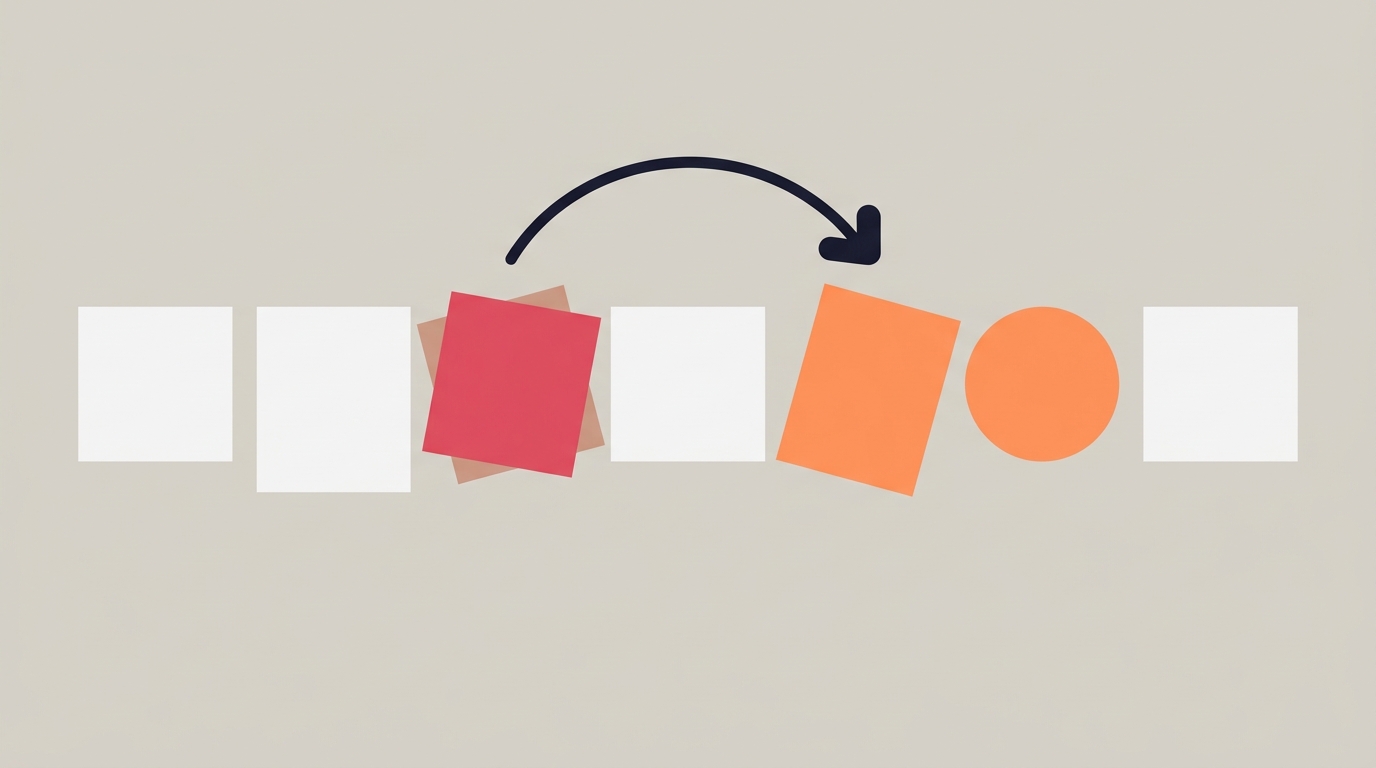
You built the carousel in order. Cover, five steps, payoff, ask. You checked it twice. Then it went live and the first thing your followers saw was step four.
This is one of the most common carousel failures, and one of the least discussed. Nothing is wrong with the slides themselves. Somewhere between your design tool and the feed, the sequence got lost — and because a carousel is images plus the order they are read in, losing the order breaks the post.
This guide covers where carousel order goes wrong, the checks that catch it before you schedule, and what you can still fix on each platform after it is live.
Why the Order Is the Post
A single image can be seen in any context. A carousel cannot. Every slide is written assuming the reader has seen the one before it, and three positions do most of the work:
The cover. Slide one is the only slide most people see. It has one job: earn the swipe. If a middle slide lands there, it usually makes no sense on its own, and there is no reason to swipe. The cover slide guide goes into what that first frame needs.
The open loop. A good carousel raises a question early and answers it late. Shuffle the middle and the answer can arrive before the question, which removes the reason to keep going.
The payoff and the ask. The result and the call to action belong at the end, after the reader has had enough to care. Move the payoff forward and the rest of the post becomes redundant. Move the ask forward and it reads as pushy.
For some posts the damage is mild. For anything sequential — a recipe, a tutorial, a before-and-after, a timeline — the wrong order makes the content genuinely wrong.
A Post Where Order Is Everything
Here is the kind of carousel that suffers most. It is a nine-slide post from a small fresh-pasta shop that runs Saturday classes: hand-made tagliatelle, from flour to plate. This is the full carousel, in the order it was built — a cover, five method slides, cooking and plating, then one ask on a different palette.
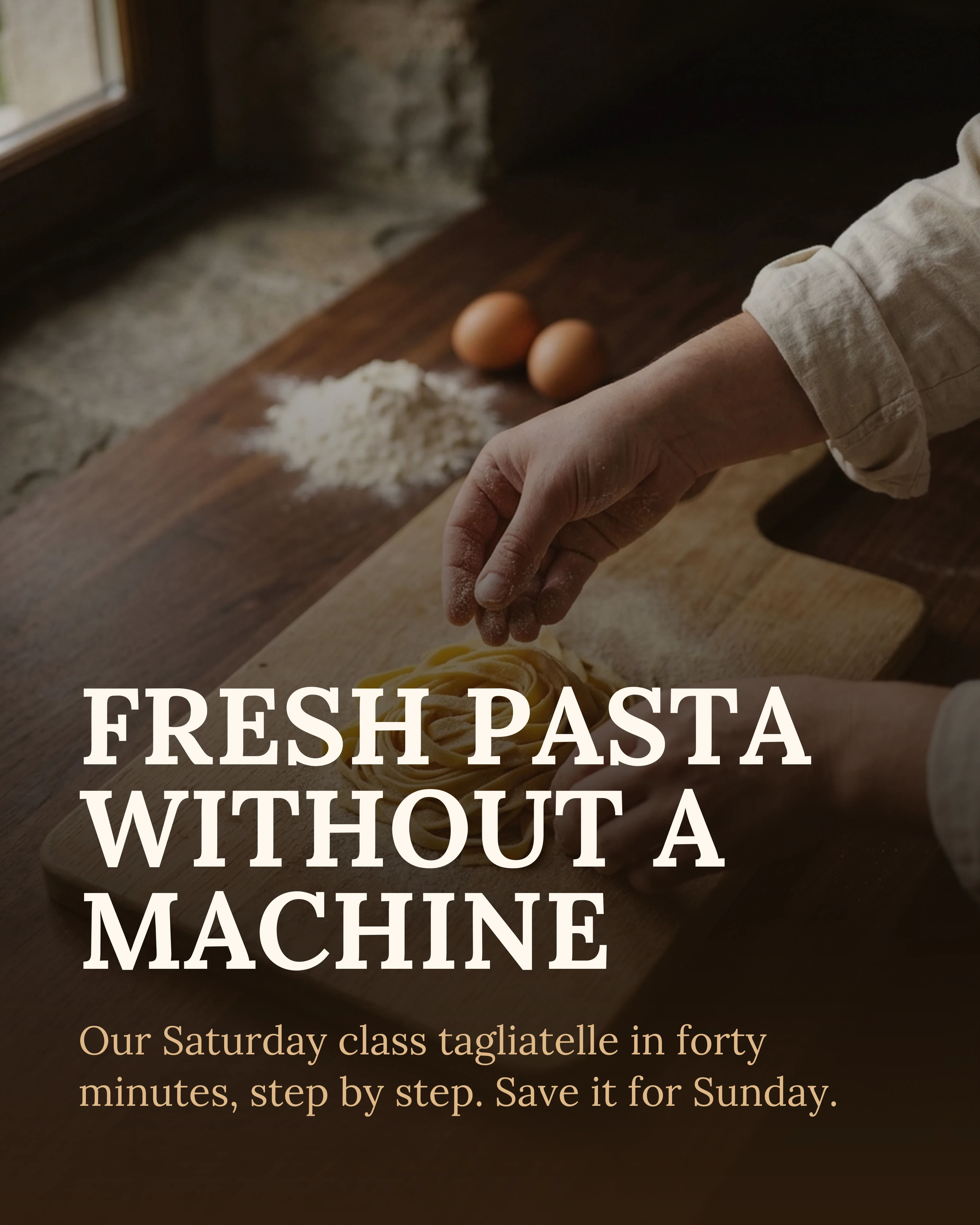
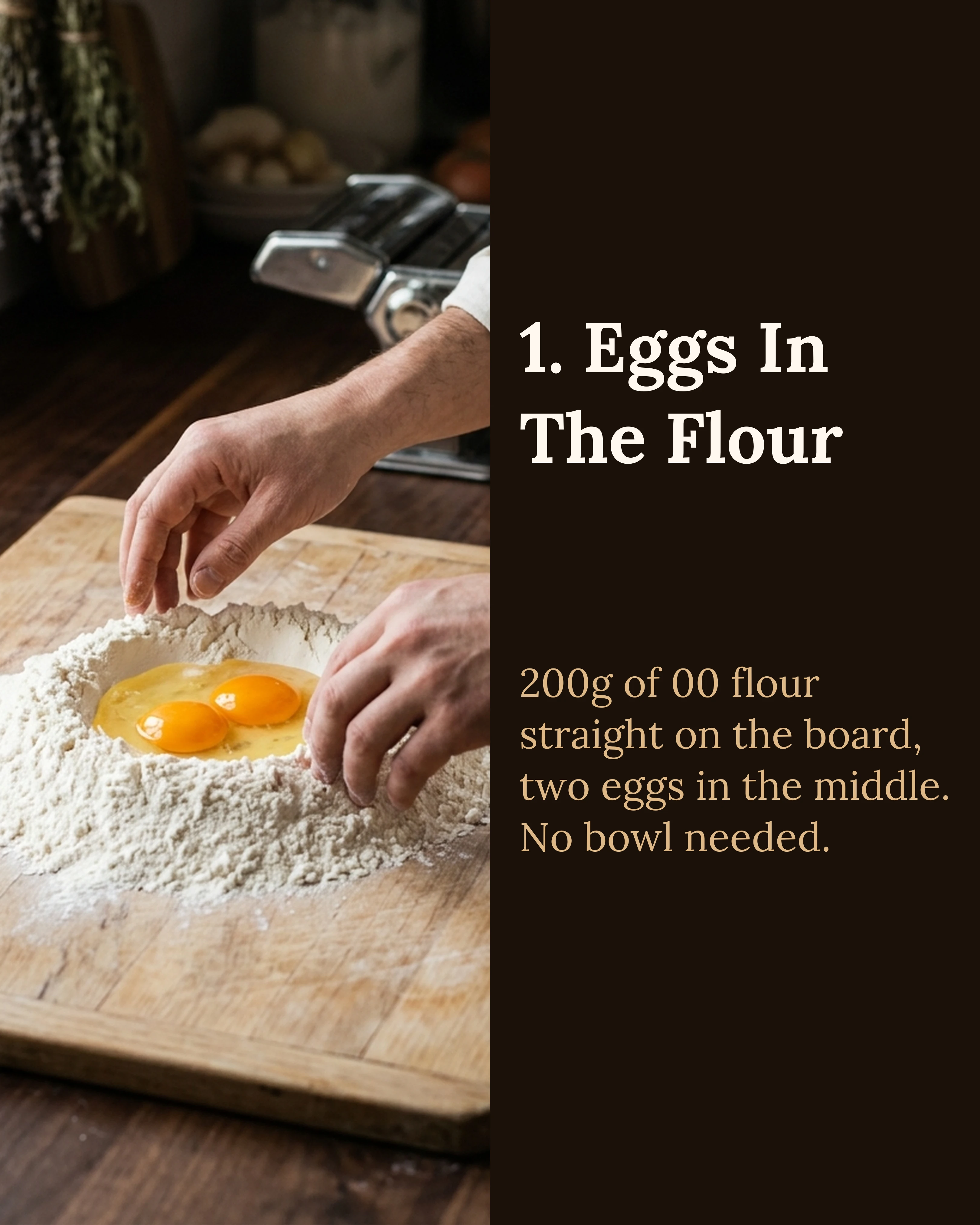
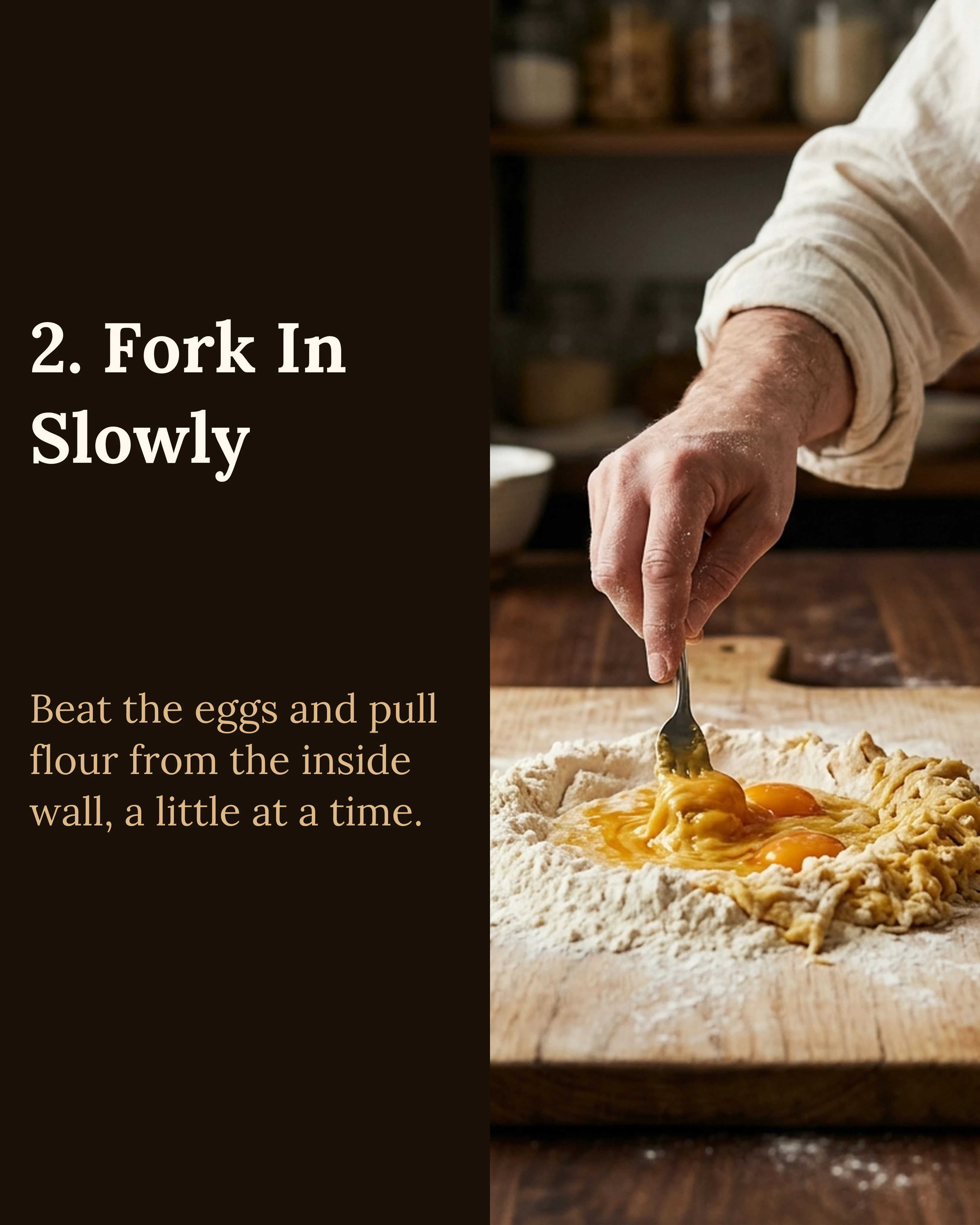
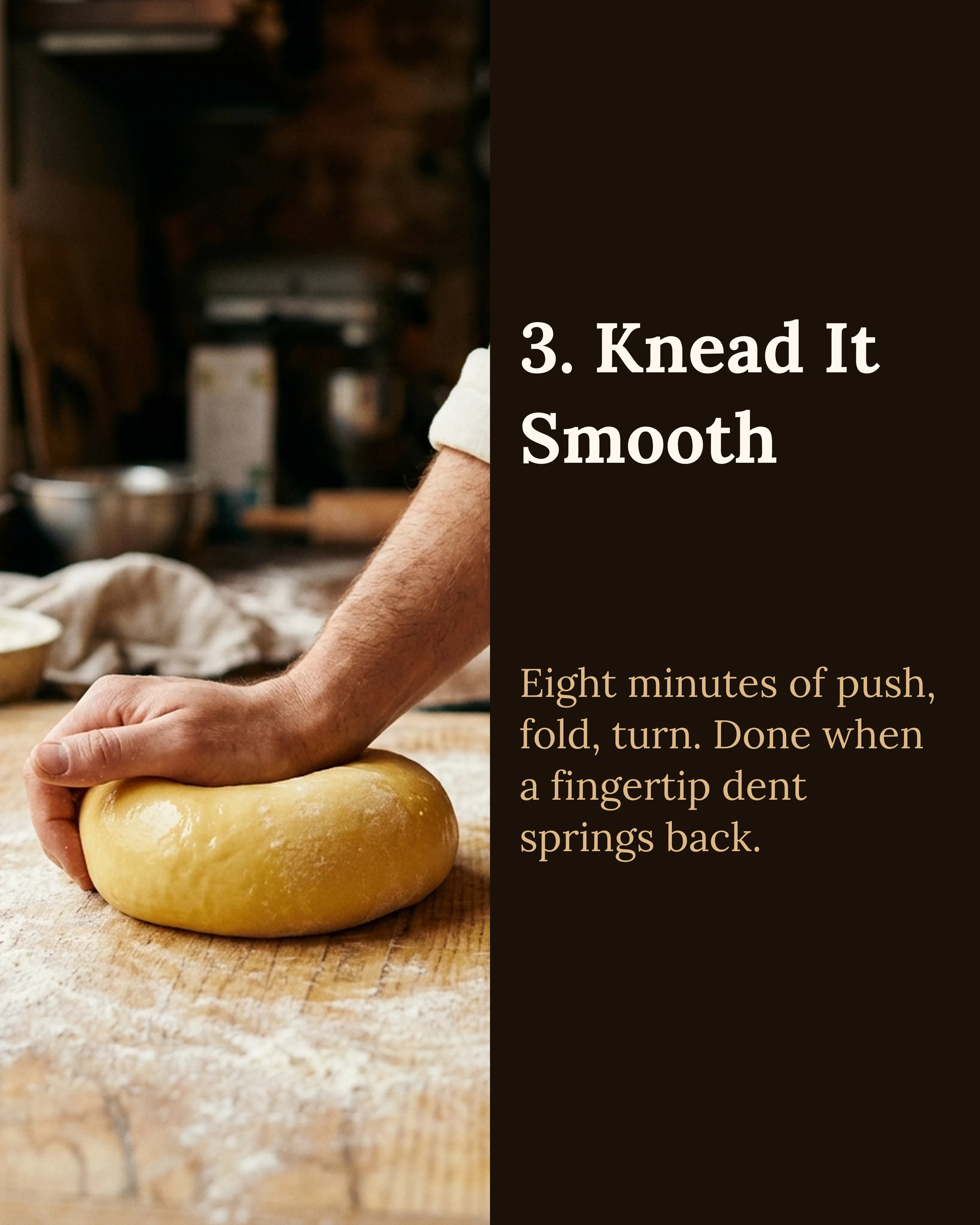
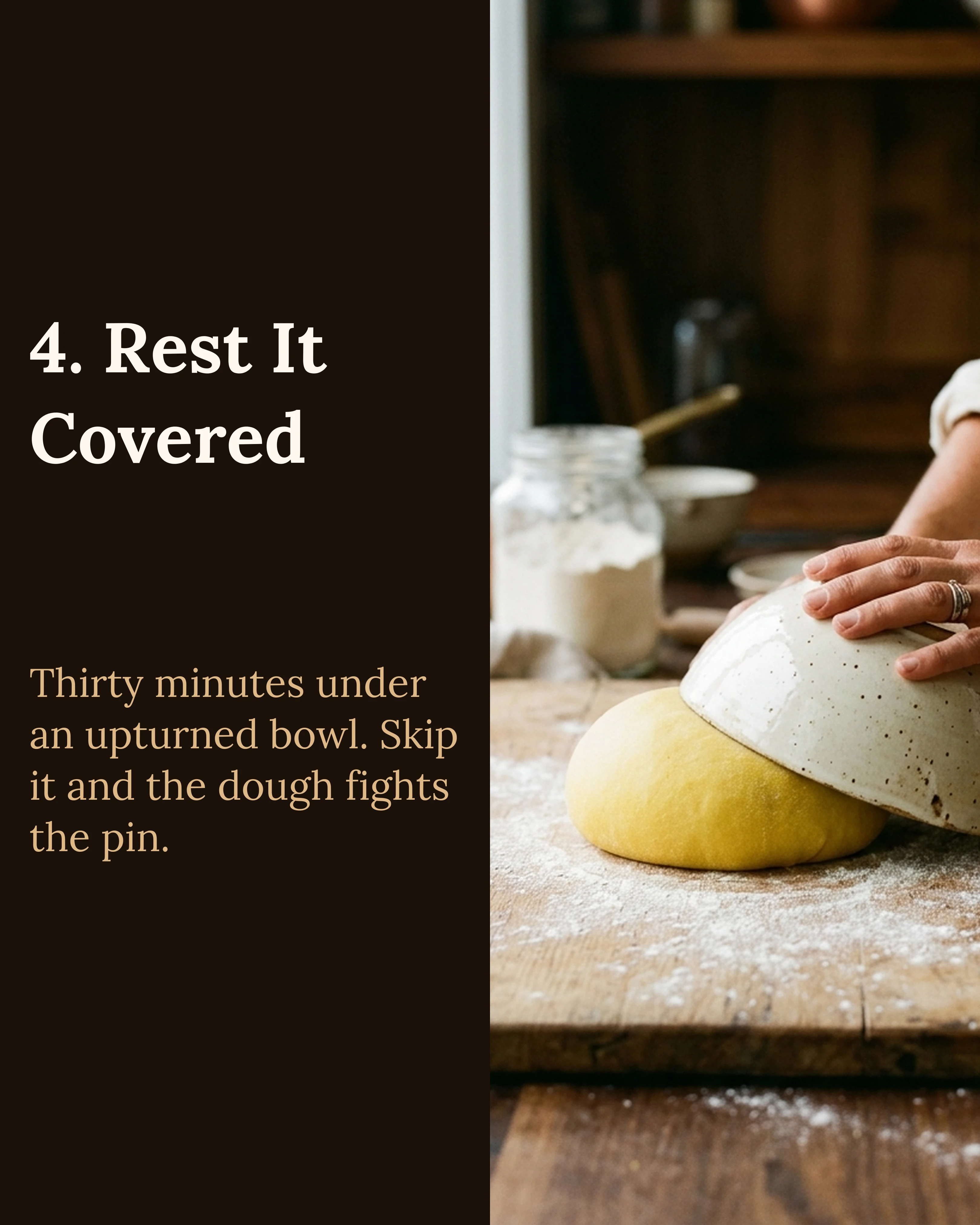
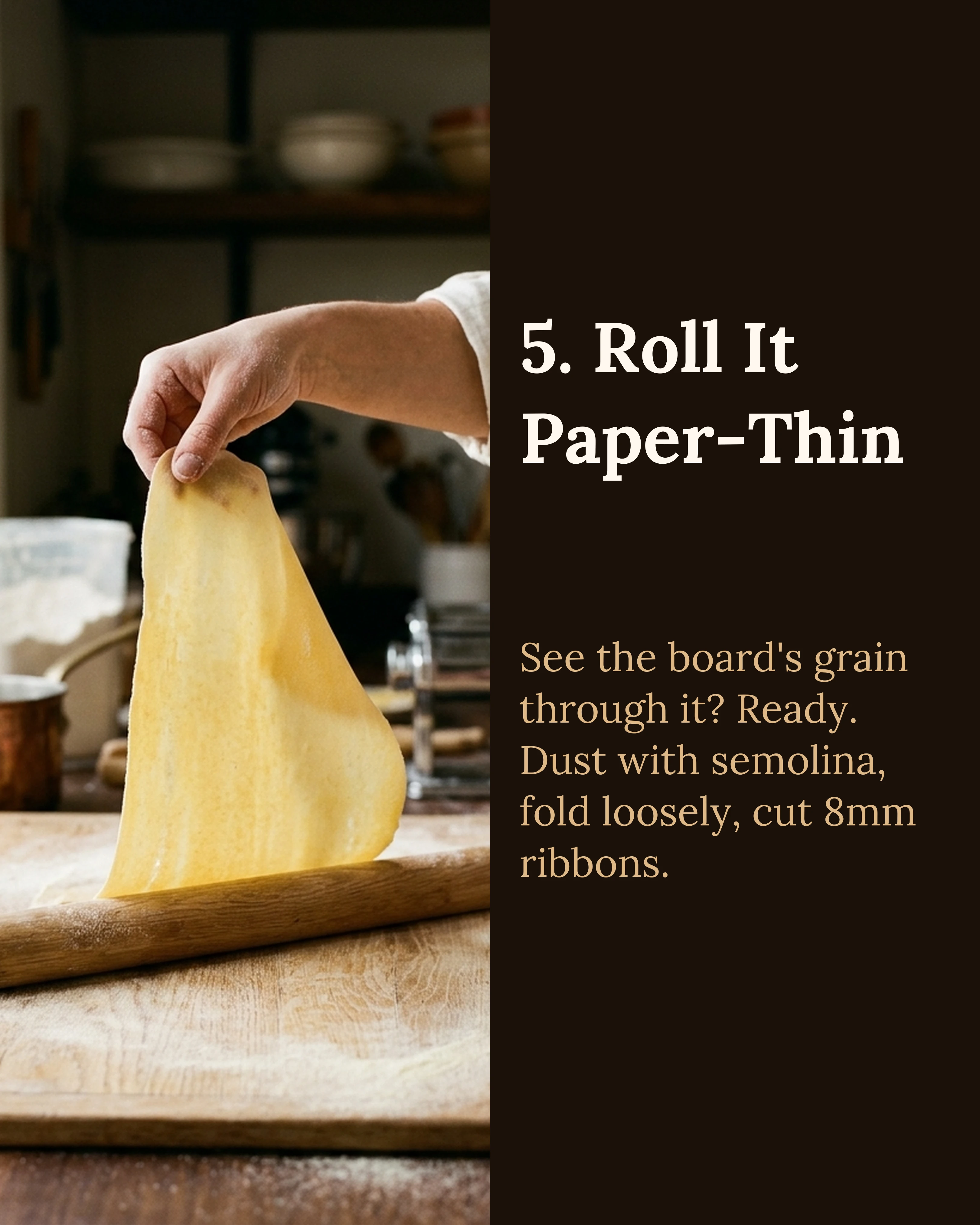

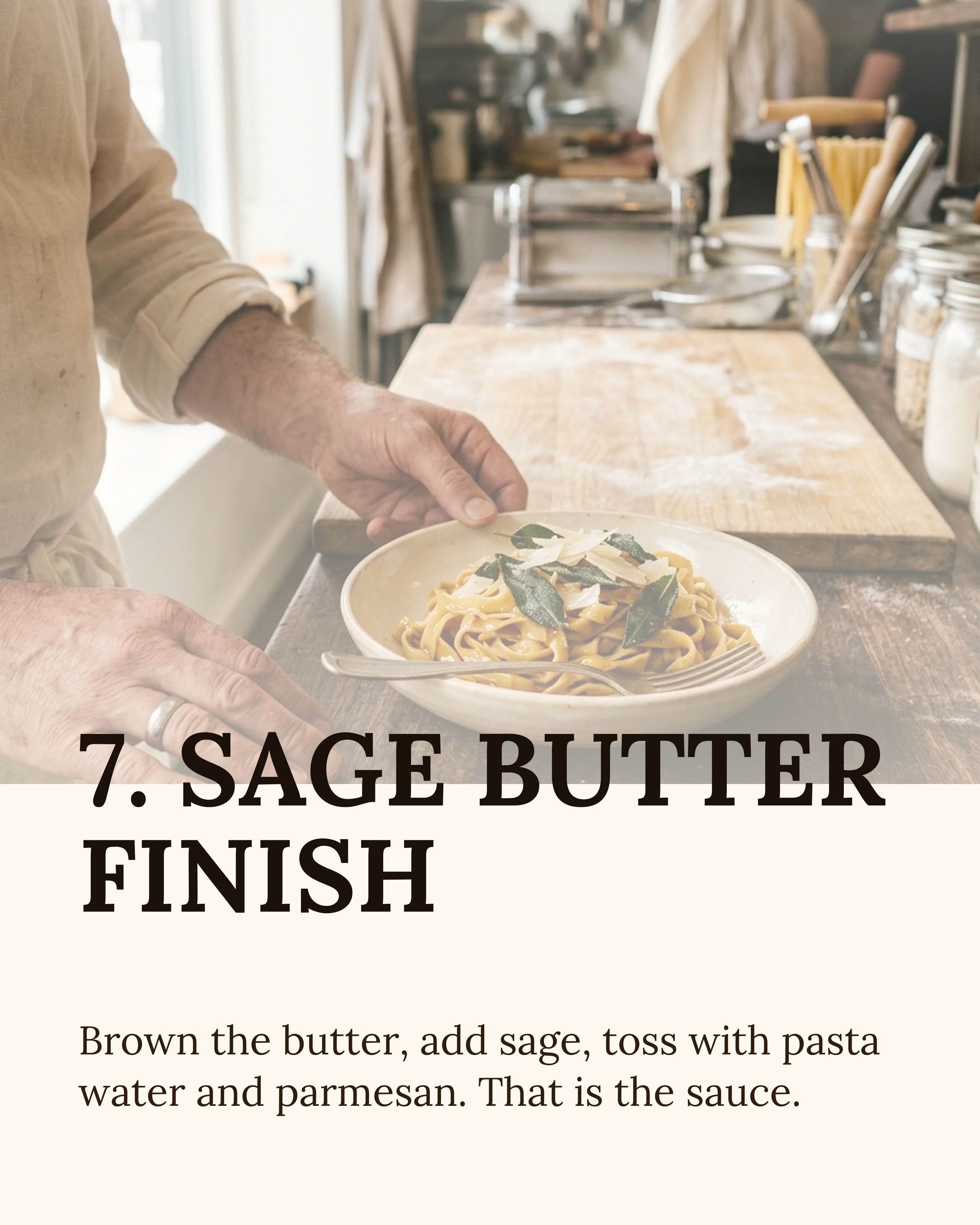

Every method slide depends on the one before it. You cannot rest dough you have not kneaded. That is exactly what makes it useful — and exactly why a shuffle is so visible.
Now here is a representative example of how the same post can arrive when the order is lost on the way to the scheduler. The resting slide leads, the cover is buried in position three:
A scroller sees a ball of dough under a bowl and “Thirty minutes under an upturned bowl.” No hook, no context, no reason to swipe. The numbers on the headlines help here in one respect: they make the mistake obvious the moment you preview it. More on that below.
Where Carousel Order Gets Lost
Order is rarely lost by the platform itself. It is lost in the hand-offs between tools. These are the usual culprits.
File names that do not sort the way you think
Most tools that accept a folder or a multi-file drop sort by file name, and they sort as text, not as numbers. To a computer, slide-10.png comes before slide-2.png, because the character “1” sorts before “2”. A nine-slide carousel named slide-1 to slide-9 survives. A ten-slide one does not.
Worse are exports with no meaningful name at all — IMG_4471.png, Untitled (3).png, export-final-FINAL.png. Any tool that sorts those by name, date created or date modified is producing an order you never chose. Re-exporting one slide to fix a typo is enough to push it to the end of a date-sorted list.
Phone photo pickers
On a phone, carousels usually go through the photo picker. Two things happen there. First, the camera roll is sorted by date, so if you re-saved one slide, it now sits away from the others. Second, most pickers — including the ones inside Instagram and TikTok — number your selections in the order you tap them, not the order they appear in the grid. Tap slide four first because it caught your eye, and it becomes slide one.
Scheduling tools and third-party uploaders
Schedulers are a hand-off on top of a hand-off. You upload files to the tool, the tool stores them, and later the tool uploads them again to the platform. Each step is a chance to re-sort: by name, by upload time, or by whichever file finished uploading first when several go up at once. Some tools let you drag to reorder in the composer, some show thumbnails in a grid where the reading order is ambiguous, and some quietly re-sort after you save a draft.
The API behind the scheduler
When a tool publishes to Instagram on your behalf, it uses Meta’s content publishing API. A carousel is built by uploading each image as its own item, then creating a carousel that lists those items — and the post follows that list. If a tool assembles the list in the order uploads completed rather than the order you set, the post goes live shuffled even though the composer looked right. You cannot see this from the outside, which is why the checks below focus on what you can see.
LinkedIn document posts
LinkedIn is the one place where order is usually safe, because a document carousel is a PDF and the page order is fixed inside the file. The risk moves upstream: if the PDF was assembled from loose images, it inherited whatever order those images were in. Open the PDF and page through it before uploading. The LinkedIn carousel guide covers the upload itself.
The Pre-Schedule Checklist
None of these take more than a minute. Together they close nearly every gap above.
1. Zero-pad your file names. Name slides 01_cover, 02_well, 03_fork and so on. The leading zero means text sorting and number sorting agree, so every tool that sorts by name gets it right — including past slide nine. Add a short word after the number so you can tell slides apart at a glance.
2. Export the whole set at once, every time. If you fix one slide, re-export all of them. A lone re-exported file has a new date and sometimes a new name, and it is the one most likely to jump the queue.
3. Keep a set in its own folder or album. One folder per carousel, nothing else in it. On a phone, a dedicated album means the picker shows only those slides, in one place.
4. Tap in order, and watch the numbers. In a phone picker, select slide one first, then two, then three. Check that the little number on each thumbnail matches the number in the file name before you tap Next.
5. Put a sequence cue on the slides. Step numbers, “3 of 7”, or a progress bar are useful to readers anyway, and they turn a shuffle into something you can spot in half a second. The pasta post above uses numbered headlines for exactly this reason.
6. Preview in the tool that will publish. Not in your design app — in the scheduler’s final preview, or the platform’s own composer, after the last save. Swipe through all of it. If the tool only shows a thumbnail grid, open the post preview so there is no doubt about reading order.
7. Check the live post within a minute. Open it on your phone, swipe the whole way through. If something is wrong, you want to find it before the first wave of views does.
What You Can Fix After Posting
If a carousel does go live in the wrong order, what you can do depends on the platform. Editing features change, so treat this as the state of play at the time of writing and check your own app.
Instagram. You can now reorder a published carousel. Instagram announced in March 2026 that you can long-press and drag slides into a new order after publishing, keeping the post and its engagement. You have also been able to delete individual slides since 2021, as long as at least two remain. What you still cannot do is add a slide to a published carousel. So a shuffle is fixable in a few seconds, but a missing slide is not.
LinkedIn. Only the post text can be edited. LinkedIn’s Help Center says shared media — including photos and documents — can’t be replaced after posting. If the PDF pages are in the wrong order, the fix is a corrected upload as a new post.
TikTok. TikTok’s post editing is built around the caption, hashtags and cover, and creators report mixed experiences with rearranging photos in a published photo post — some say it works, others that the order is locked once published. We could not confirm the current behavior in TikTok’s own documentation, so the safe assumption is that the order you publish is the order you keep. That makes the preview step especially important on TikTok, where photo mode also advances slides on its own. The TikTok photo mode guide covers the rest of the format.
The pattern across all three: what you get right before publishing is the only thing you fully control. Instagram’s reorder feature is a safety net, not a workflow.
How Carousel Helps
In Carousel, a carousel is one project with its slides in a single visible sequence, so the order you design in is the order you export — there is no pile of loose files to reassemble later. Templates handle numbered and step-style layouts, which makes the sequence cues in step 5 of the checklist part of the design rather than an afterthought. Export for Instagram, LinkedIn or TikTok straight from your phone, then run the preview check in whichever tool publishes it.
Key Takeaways
- A carousel is images plus their order. Lose the order and the cover, the open loop and the payoff all stop working.
- Order is usually lost in hand-offs: text-sorted file names, date-sorted camera rolls, picker tap order, schedulers and the APIs behind them.
- Zero-pad file names (
01_,02_), export the full set every time, and keep each carousel in its own folder or album. - Tap slides in order in phone pickers and check the selection numbers.
- Put step numbers or progress cues on sequential slides — they help readers and make a shuffle obvious.
- Preview in the tool that publishes, then check the live post straight away.
- Instagram now lets you reorder and delete slides after posting, but not add them. LinkedIn media cannot be replaced. On TikTok, assume the order is final.
Want your slides to leave your phone in the order you built them? Download Carousel — free on the App Store.